
Auto-captions are never right the first time. Fix them in a minute.
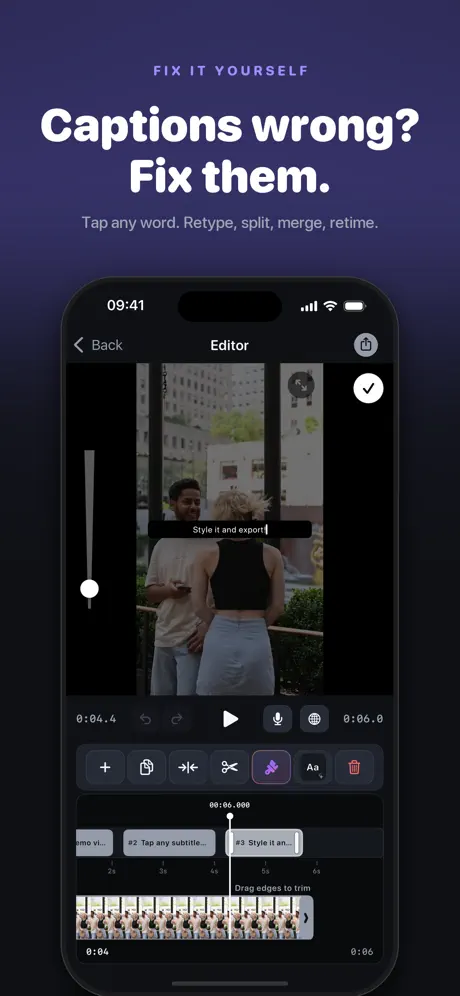
A misspelled name, two lines glued together, timing half a second off — Subvibe gives you the timeline to fix it. Tap a word to retype it, drag a block to retime it, then export.
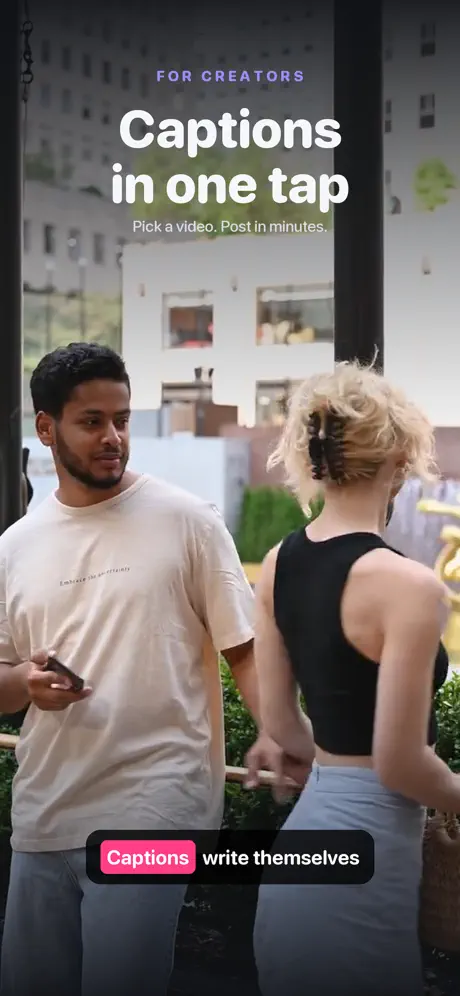
Why people use it
Edit every line
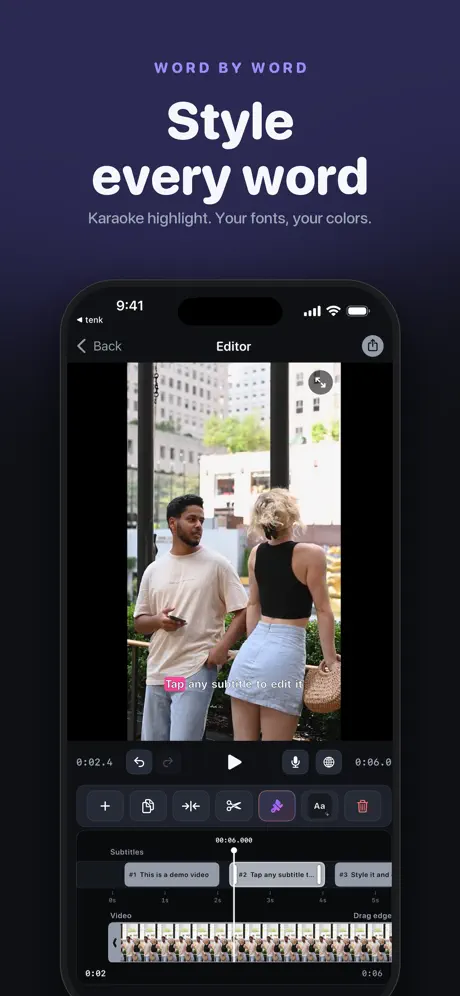
Retype, split, merge and restyle each subtitle right on the timeline — not in a tiny text box.
Timing that matches speech
Drag blocks to fix drift and line subtitles up with the words, frame by frame.
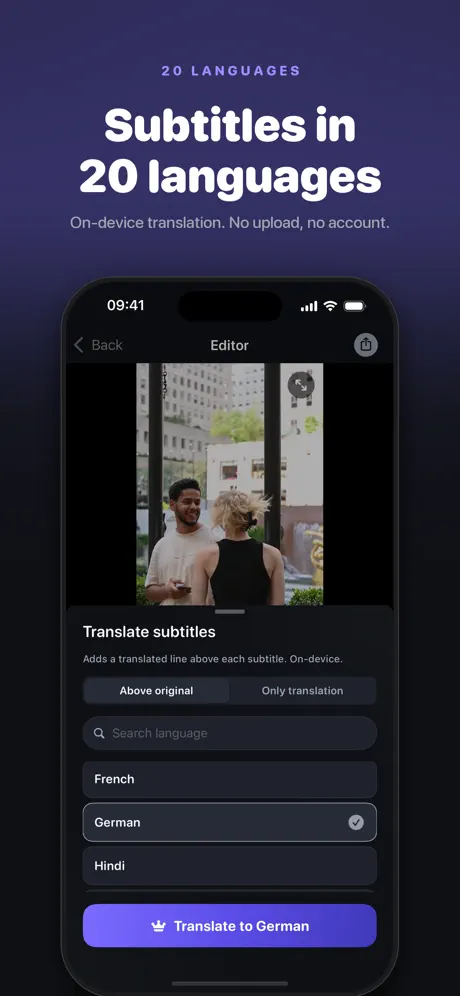
Translate into 20 languages
Translate the whole track on your iPhone. Nothing is uploaded and no account is needed.
Your video stays with you
The video never leaves your phone. Switch recognition to on-device mode and you can work with no connection at all.
Inside the app
How it works
Pick a video
Choose it from Photos. Subvibe only reads the video you select.
Get subtitles
Speech is turned into text automatically — in the cloud or right on the device, your choice.
Fix, style, export
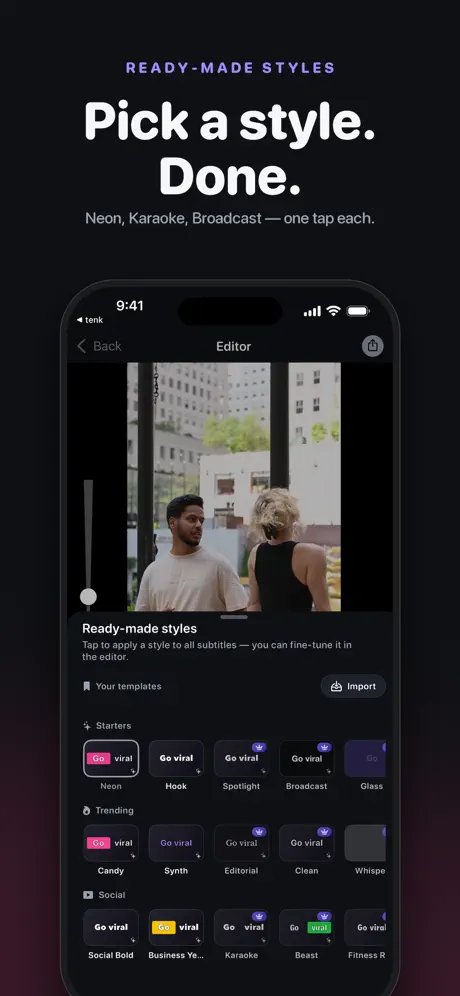
Correct the words and timing, pick a style or word-by-word animation, then burn subtitles into the video or save an .srt.
Questions
Is Subvibe free?
Your first 3 exports are free, with a watermark. Subvibe Pro unlocks unlimited exports without the watermark and premium styles.
Is my video uploaded anywhere?
No. The video stays on your iPhone. Only the audio is used to generate subtitles, and in on-device mode even that stays on the phone. See the privacy policy.
Does it work offline?
Yes, in on-device mode. The speech model is downloaded once when you choose it; after that recognition and translation work without internet.
What can I export?
A video with subtitles burned in, saved to Photos, or a clean .srt file for YouTube, Premiere, CapCut or anywhere else that accepts SRT.
Can I style the subtitles?
Fonts, colours, outlines, backgrounds, ready-made templates, and word-by-word reveal and highlight animations.
Clean up your next video’s captions
Download Subvibe and try the first three exports for free.